Making your own image, step by step
Uploading your own image is free on every plan. Here is how to make one that goes straight to voting instead of waiting for a moderator: the exact colours, the canvas, and the few things the machine checks.
1. Start with the sound-alike, not the drawing
Open the word on the community site and decide your keyword first: something that sounds like the Spanish and that you can draw. Cerradura (lock) became "cereal door": a door made of a cereal box, held shut with a padlock. Then picture the one moment where the keyword does something with the meaning. That moment is your image. How the method works and what makes a good keyword.
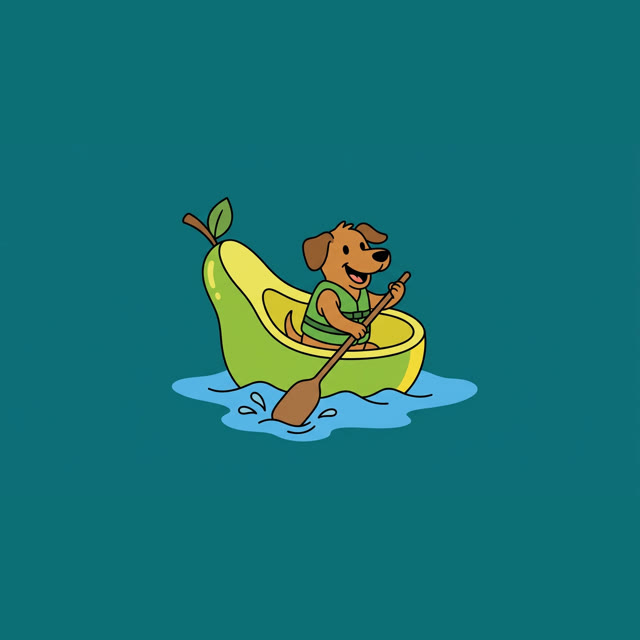 the dog rows a pear with an oar
2. Check the word's colour
The background colour is the word's grammatical gender, so it has to be exact. The word page shows it next to the upload box. Type the code into your app's colour picker rather than matching it by eye:
| Gender | Colour | Code |
|---|---|---|
| Feminine (la) | coral | #FF6F61 |
| Masculine (el) | teal | #0E6E75 |
| No gender (verbs, adjectives…) | sand | #D8BC8A |
3. Make a square canvas and fill it
Any drawing app that lets you type a colour code will do: Krita on a computer, Photopea in a browser, Ibis Paint X on a phone, Procreate on an iPad, or Canva. All of them except Procreate are free.
- Make a new canvas, 1024 × 1024 pixels. Any square size works, but this is the size the house draws at.
- Fill the whole canvas with the word's colour, using the code above. Do it on the bottom layer, before you draw anything.
- Don't leave the background transparent. A transparent background usually reaches us as black, and fails the colour check.
4. Draw it in the house style
- One big, clear subject in the middle, large enough to read on a phone at thumbnail size.
- Flat cartoon look: bold dark outlines, simple shapes, flat fills. No gradients, no photo textures, no photos.
- Keep the corners clear. The background runs edge to edge. No frame, border, sky, floor or picture-in-a-box.
- No writing anywhere. Not the word, not a label, not a sign, not a logo on a shirt. The app writes every word itself.
- Use only your own work, or something you're allowed to use. No real people and no brand logos.
Like this
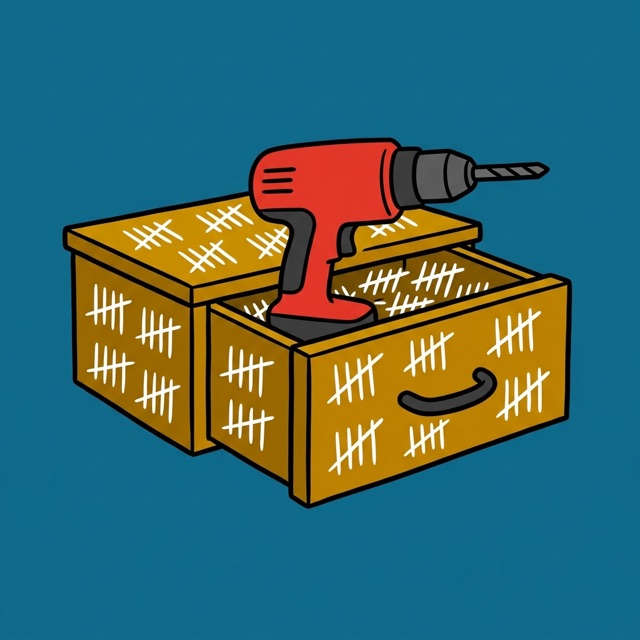
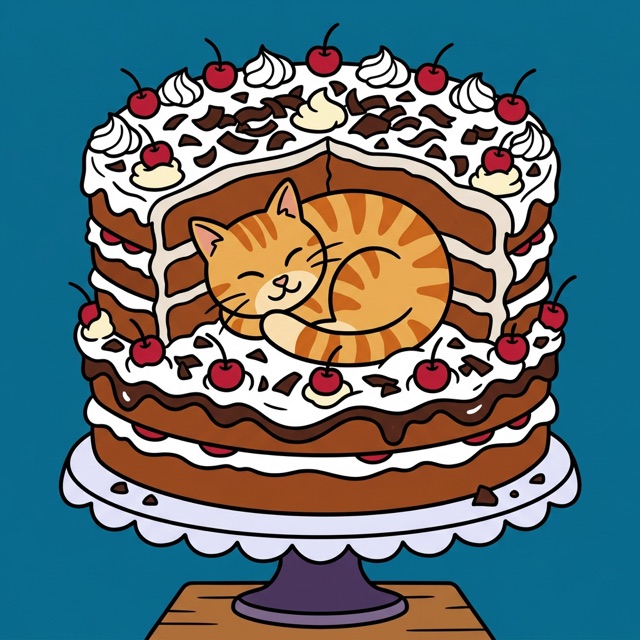
One subject, bold outlines, flat colour, and the word's colour running to every edge. All three are masculine, so all three are teal.
Not like this
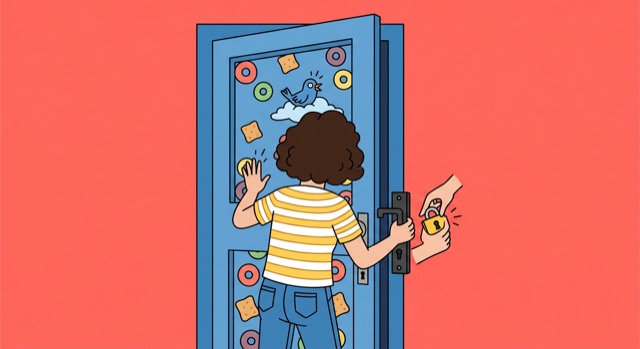
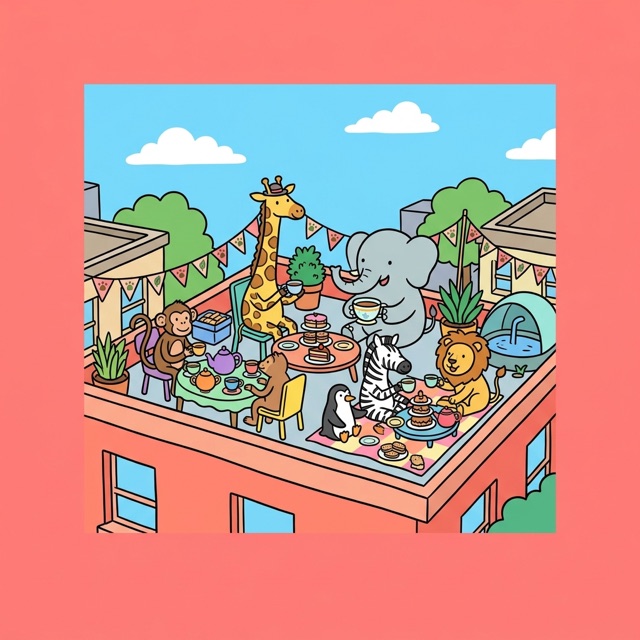
A drawing on paper can work too, but a photo of it won't: the paper's colour and the shadows break the flat background. Scan or photograph it, then put it on a filled canvas in your app and clean up the edges.
5. Export it
Save as PNG (best for flat colour), JPEG or WebP, up to 8 MB. Check that the export didn't add a white margin or crop it to a rectangle.
6. Upload it from the word page
On the word's page, open Submit your own image (or Upload your own), choose your file, add your keyword and a one-line "why it works", and send it. Before anyone sees it, these are checked automatically:
- Safety and writing: the same scan every image gets, which also reads any words in it.
- Shape and colour: that it's square (within 2%, so 1024 × 1004 passes), and that at least three of its four corners are the word's colour. Room is left for one corner to hold a bit of the scene.
Pass both and it goes straight to voting. Miss one and it isn't rejected: the page tells you it didn't meet the standard, and it waits for a moderator. The subject and the look aren't checked by the machine. Moderators and members' votes and reports decide those.
Quick checklist
- Square canvas, filled edge to edge with the exact code.
- One subject, flat cartoon, bold outlines.
- Clear corners, no frame, no writing.
- Your own work, PNG, under 8 MB.